
Take a look inside Magic Dashboard
See every screen of the platform, from the first connector to the published portal, and how your team follows each customer afterwards.
A guided path from the first connector to the first sign-in
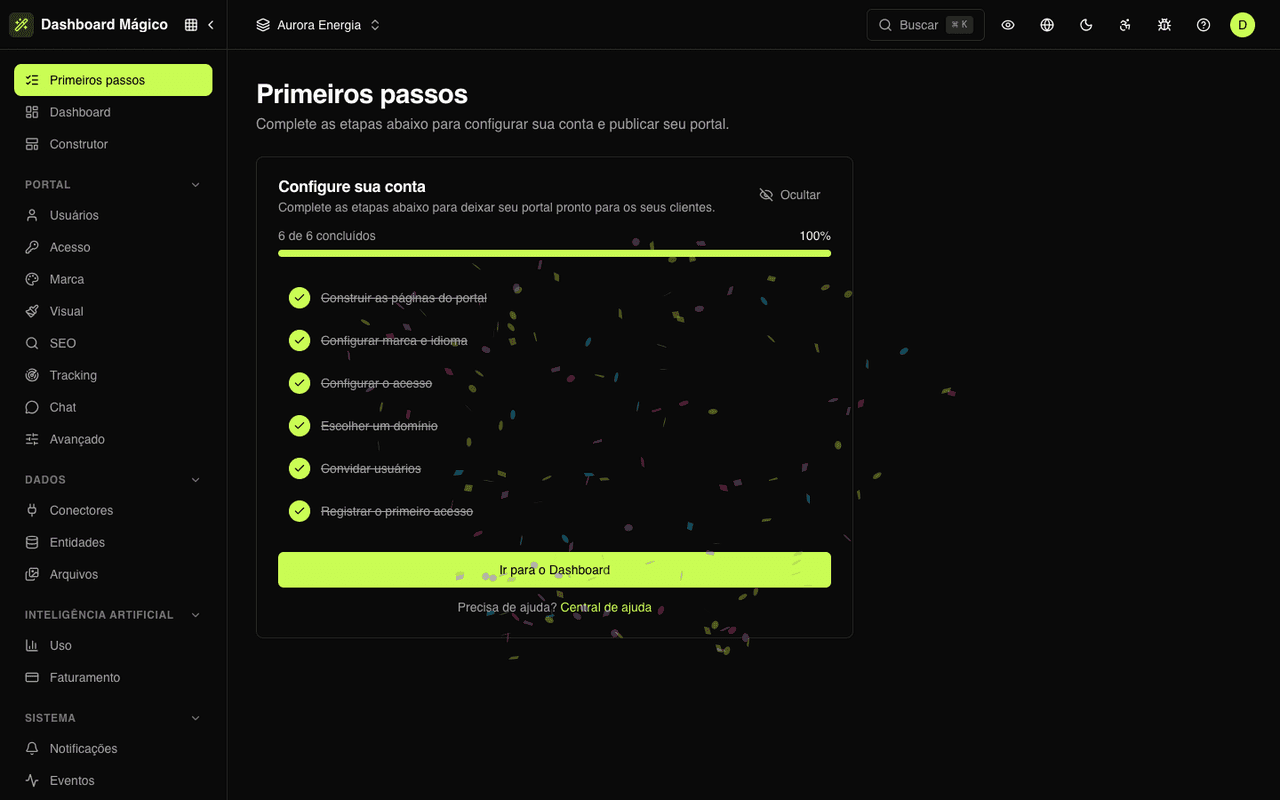
Each workspace starts with a checklist that follows the setup: connect the data, create the entities, build the pages, apply your brand, configure access and add the users. The last step completes when the first customer signs in to the portal.
Steps that check themselves
Each step is marked done as soon as you do what it asks. Nothing to tick by hand.
One screen per step
Connectors, Entities, Builder, Brand, Access and Users, in the order that makes sense.
A real first sign-in
The last step only closes when a customer actually signs in to the portal.
Out of the way at the end
Once everything is ready, the checklist leaves the menu. You can also hide it earlier.
Your systems connected, with no migration
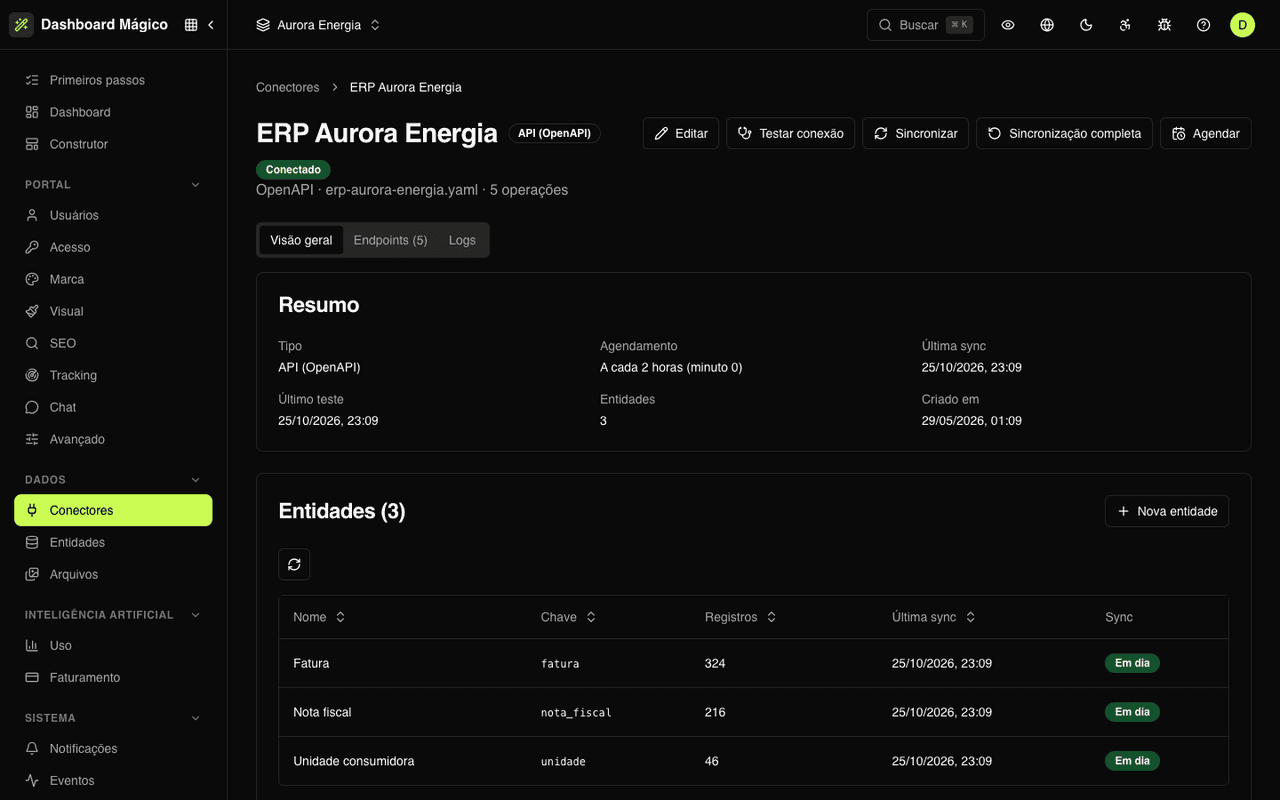
Connect the workspace to your ERP's API, an MCP server, your database or one of the 40+ services in the catalog. The connector page shows what it offers, the entities that read from it and when it last synced.
Ready-made catalog
Kobana products with just the token. HubSpot, Asaas, Conta Azul, Notion and more with just the credential.
Your API via OpenAPI
Upload the OpenAPI file and the platform lists the endpoints that can become entities.
Straight from the database
PostgreSQL, MySQL, MariaDB, SQL Server or MongoDB, by table or by SQL query.
Test, sync, check
Test the connection before saving, sync on demand and read the logs of every call to the source.
Data shaped the way the portal needs it
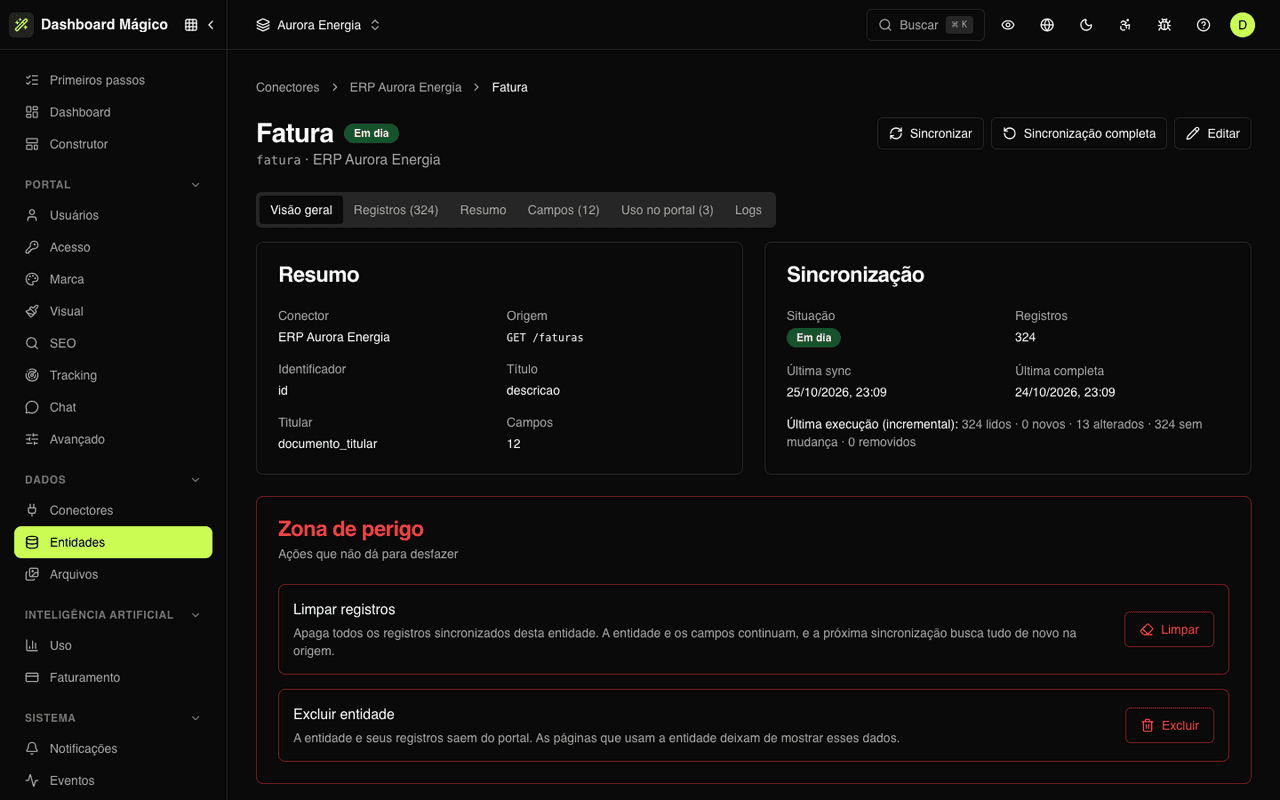
An entity is what the customer sees: invoice, contract, payment slip, tuition fee. The platform fetches a sample from the source, suggests the fields and you choose which one says who owns each record.
Owner of each record
The owner field, such as the customer's tax ID, ties each record to the right customer. No owner, no one sees it.
Sync in plain sight
Scheduled, manual or on access, with the status always on screen: Up to date, Queued, Syncing or Error.
Fields with a role
Amount, due date, status, document and link. Portal blocks format each one the right way.
Usage in the portal
See which pages and blocks use the entity before changing anything.
Build the portal by dragging blocks or chatting with the AI
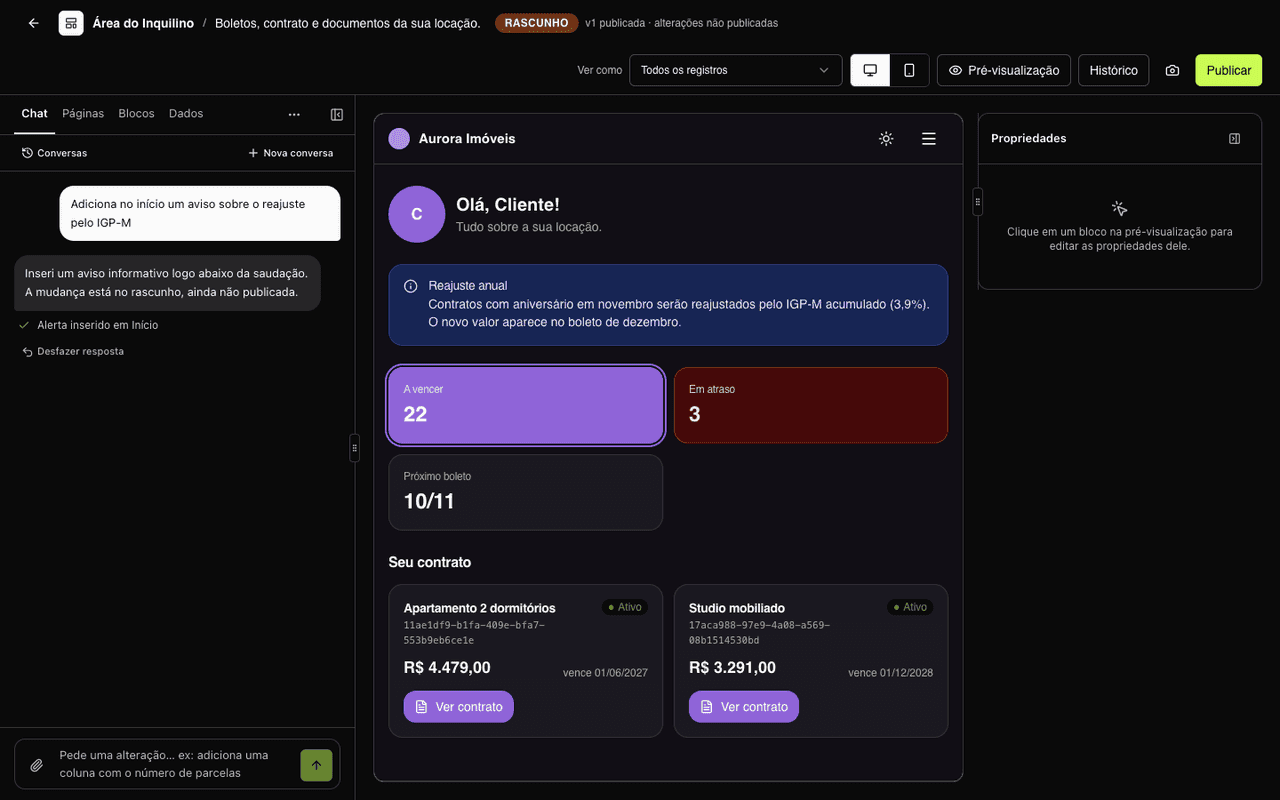
On the left: the chat, the pages, the blocks and the data. In the middle: the page as your customer will see it, with the workspace's real data. Everything stays in a draft that saves itself, and customers only see what you publish.
AI chat
Ask “add a notice about the price adjustment” and the AI changes the draft. Don't like it? Undo the answer.
View as
Check the page with any customer's data before publishing.
Desktop and mobile
Switch the preview width or open the page full screen, without the editor.
Version history
Every publish becomes a version. Roll back to an earlier one in one click.
Customers sign in the way they're used to
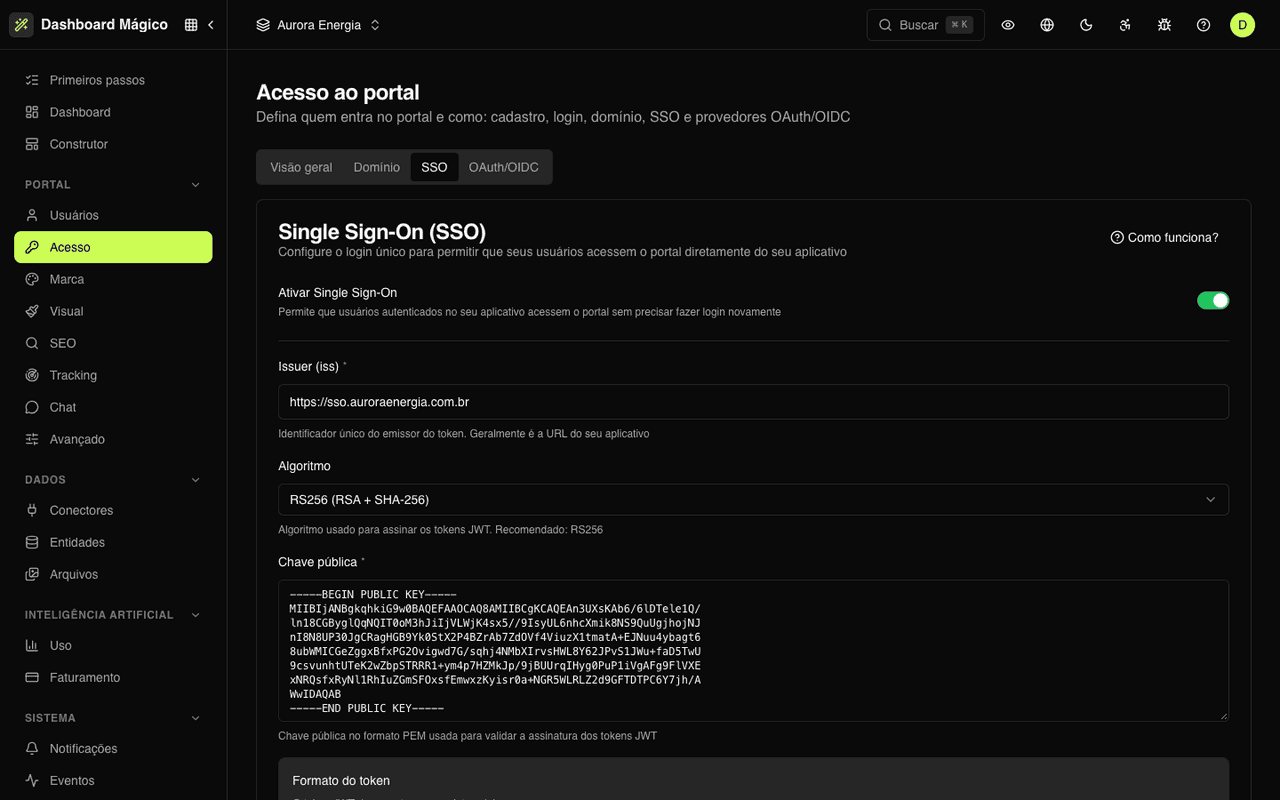
In Access you decide where the portal lives and how people sign in: email and password, magic link, Sign in with Google or SSO from your own system. The portal can use the free address or a domain of your company.
JWT SSO
Users already signed in to your system enter the portal without a password. The signature is checked against your public key.
Created on first access
SSO can create the user on the spot, already active and with the right tenant ID.
Custom domain
portal.yourcompany.com with two CNAME records. The platform issues and renews the HTTPS certificate.
Magic link
Passwordless sign-in through an emailed link that lasts 15 minutes.
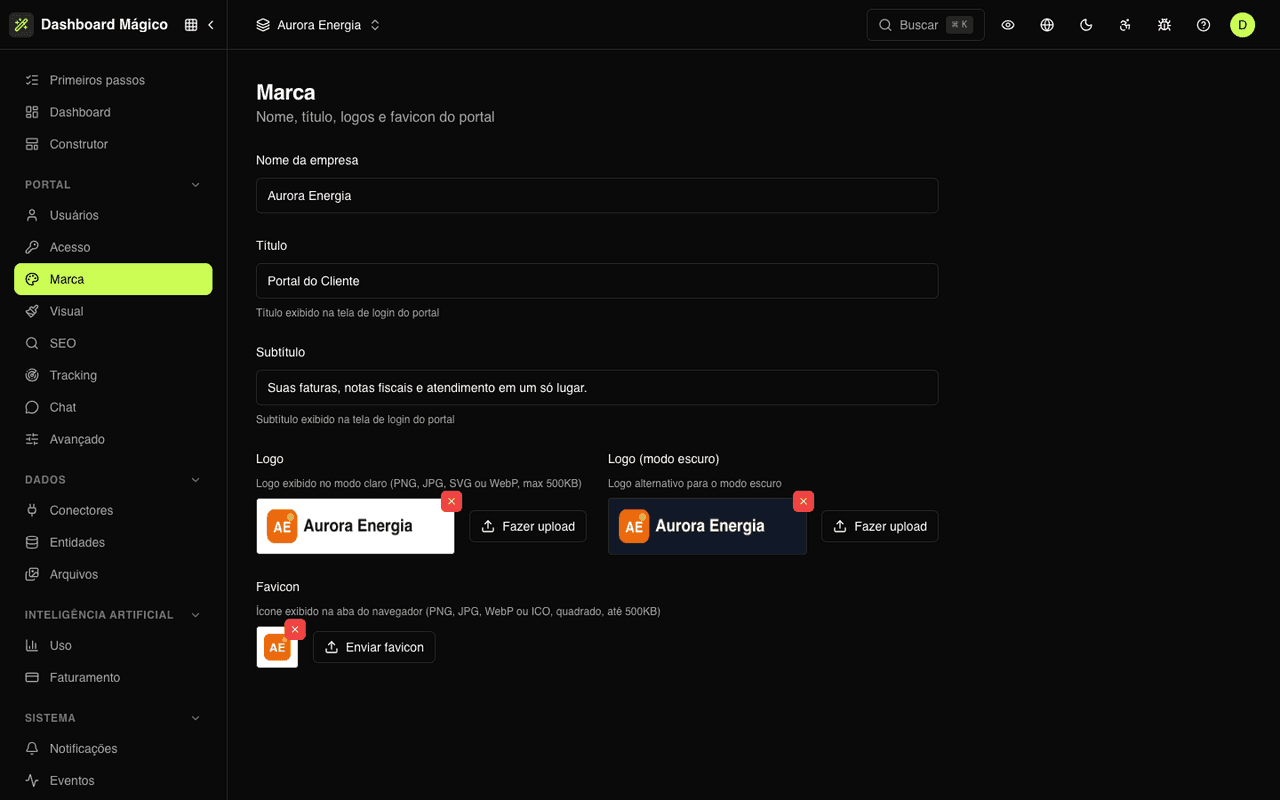
Your company's look, from sign-in to footer
Company name, sign-in title and subtitle, logos for light and dark mode and the browser tab icon. Portal colors live in Visual, with one palette for each mode.
A logo for each mode
One logo for light mode and another for dark. Each visitor sees the one for the mode in use.
A sign-in screen in your voice
Your own title and subtitle, also on the invitation, magic link and forgot password screens.
Favicon
Your brand icon in the browser tab, on every portal page.
No save button
Texts save themselves a moment after you stop typing.
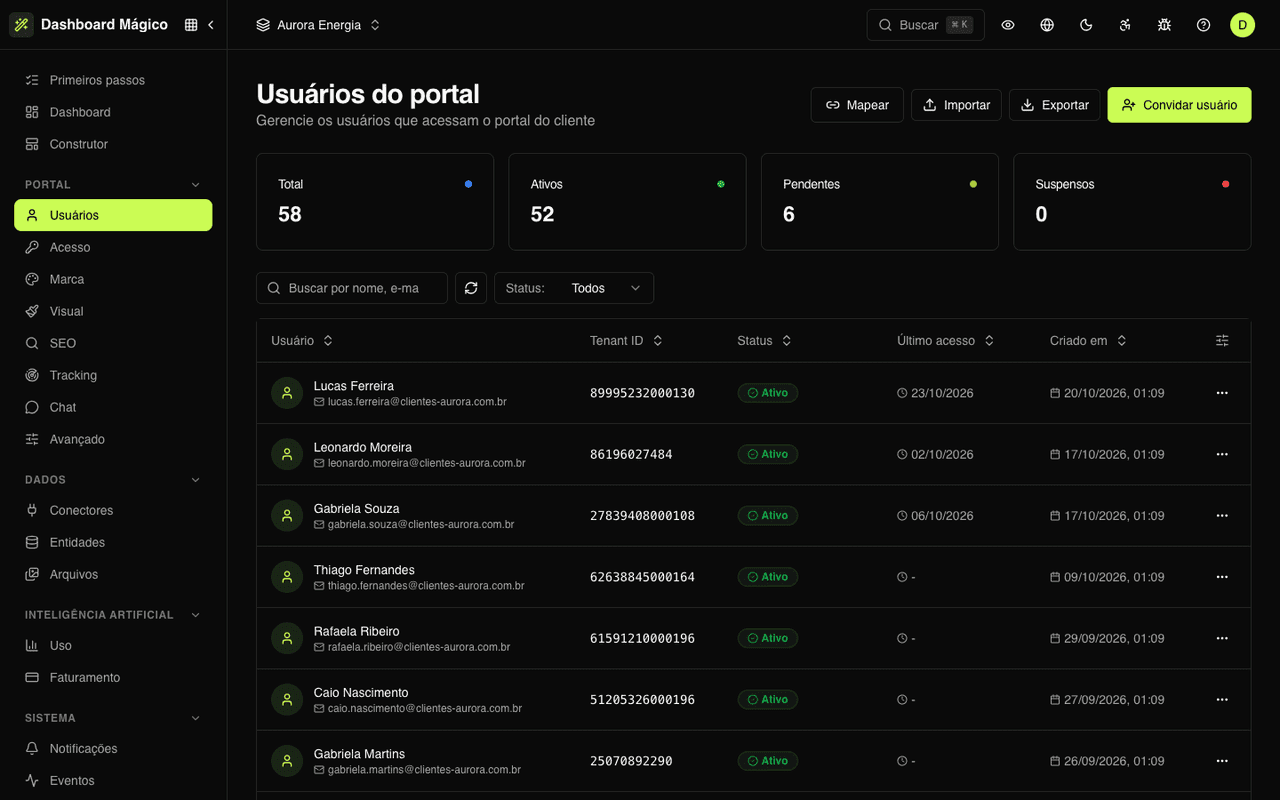
All your customers in one place
The list shows who uses the portal, each person's tenant ID, status and last access. The counters at the top tell you how many are active, pending or suspended.
Four ways to add users
Email invitation, CSV spreadsheet, mapping from an entity or SSO.
Mapping
Each record of an entity, such as the customers in your ERP, becomes a portal user.
Same tenant, same data
Partners, the finance team and the accountant can share a tenant ID and see the same records.
Import and export
Large spreadsheets processed in the background, both ways.
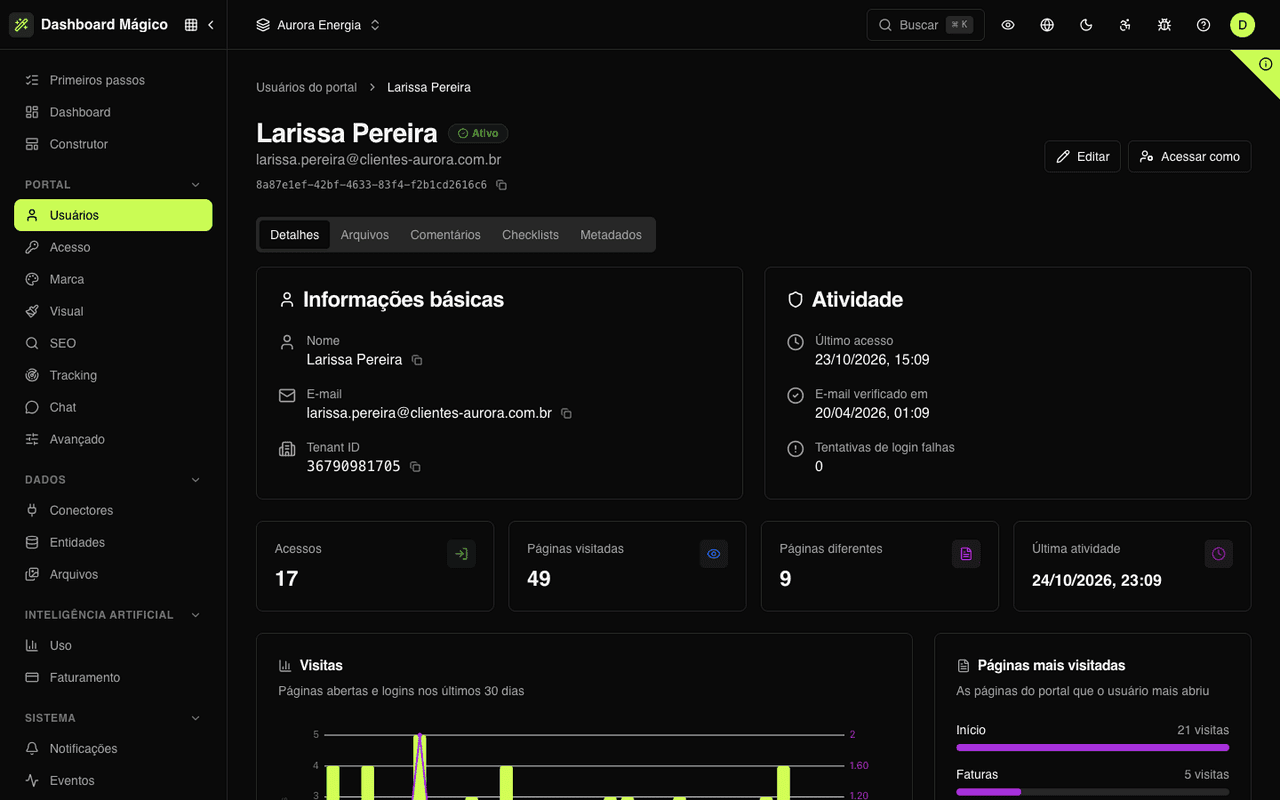
Everything that happens with each customer
The user detail page brings together the profile, portal activity and the relationship with your team: files, comments and progress on task lists.
Activity
Sign-ins, most viewed pages and daily visits, without another tool.
Files and comments
Documents sent to the customer and their conversation with your team, with internal notes.
Checklists
See which onboarding stage each customer is in.
Impersonate
Open the portal as the customer to give support, without affecting your metrics.
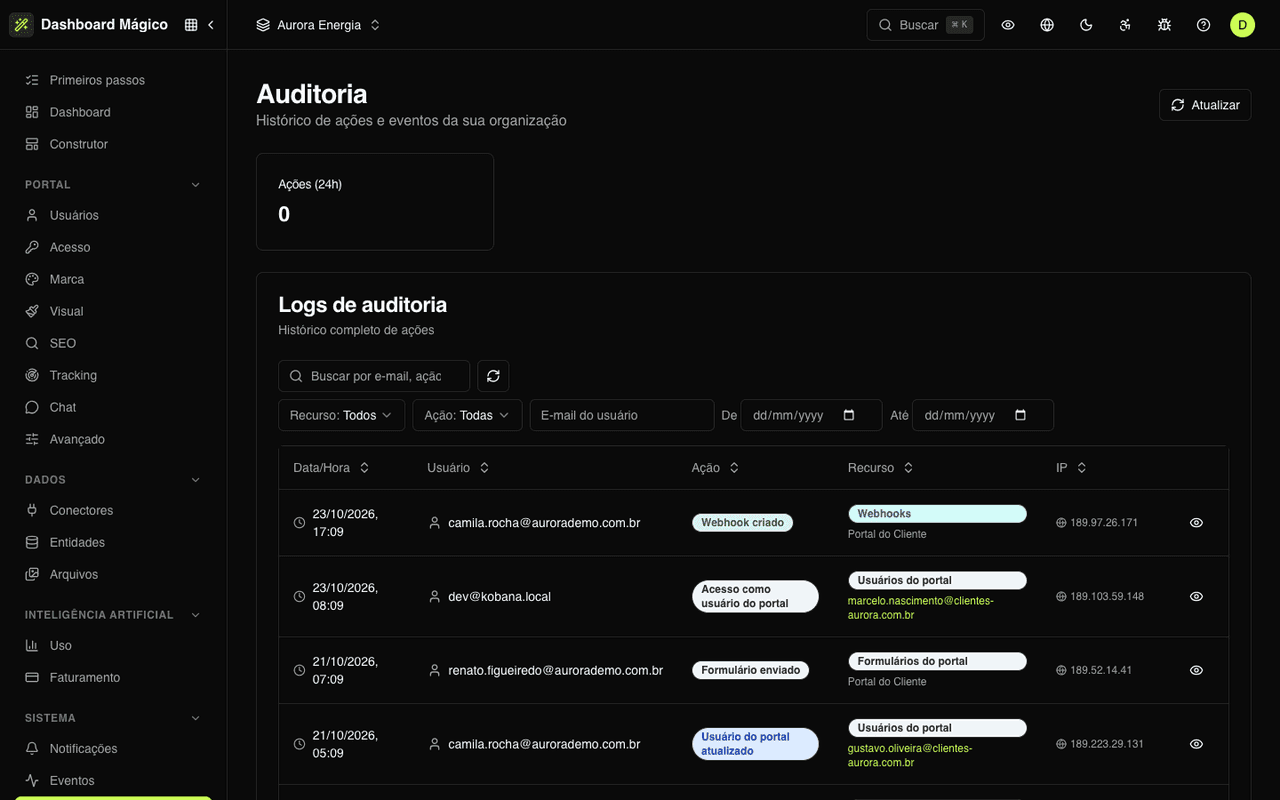
Who changed what, when and from where
Every create, update and delete made through the dashboard or the API goes into the audit trail, with the values before and after.
Before and after
Each entry shows the previous values, the new ones and only the fields that changed.
Filters
By resource, by the email of who acted or by action.
Secrets protected
Passwords, tokens and API keys are never written to the trail.
Events and webhooks
Events tell what changed and reach your system through signed webhooks.
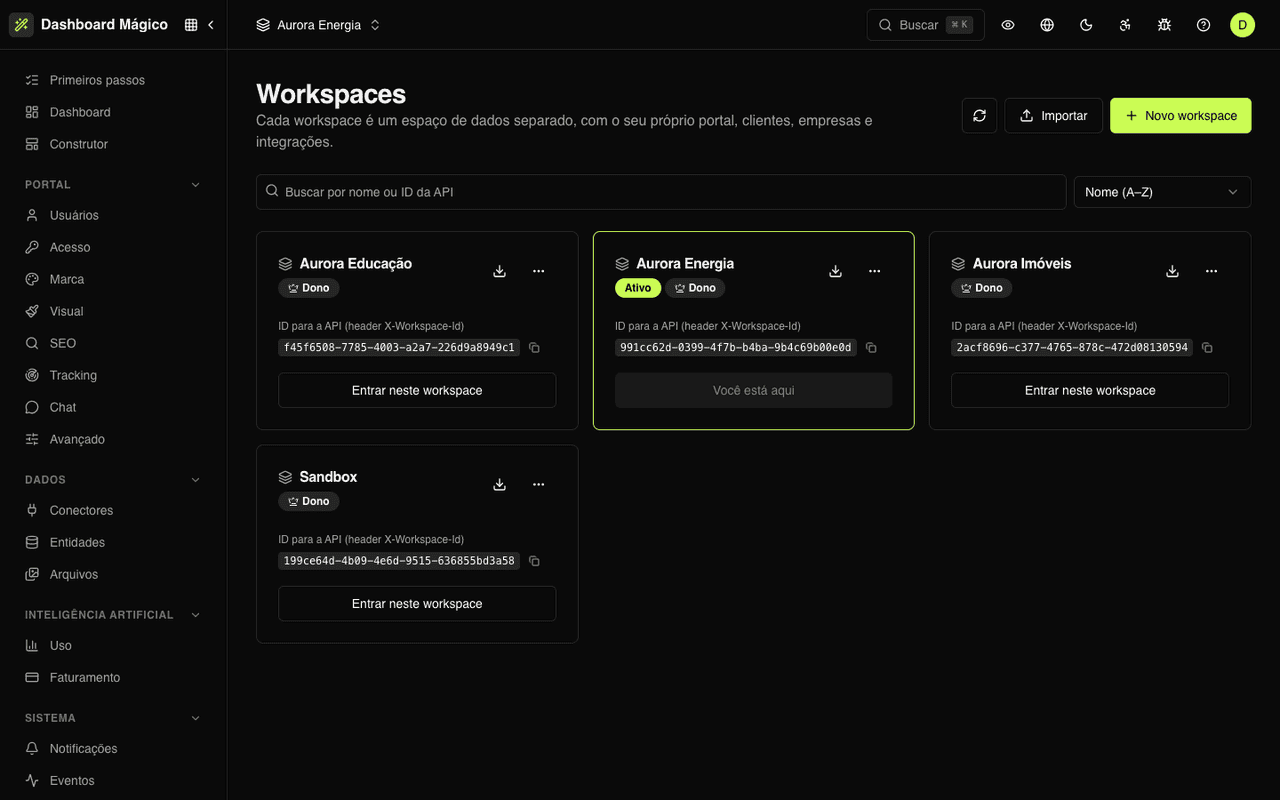
One portal per brand, business unit or product
Each workspace has its own portal, users, connectors and entities. Switch between them from the top of the dashboard and give each team member access only where they need it.
Separate data
Customers of one workspace never show up in another's portal.
Copy a workspace
Export the setup as JSON and create an identical portal, without passwords or data.
Members and roles
Built-in or custom roles, with access per workspace.
AI usage
Assistant interactions, tokens and cost, day by day, in each workspace.
Want to see the portal with your data?
Schedule a demo. We'll walk you through a complete portal, from connector to published page, and build a new page with the AI during the call.